The Search Page
The search page is the main entry point for finding items in your inventory.
Locating Items
Click the green Locate button next to an item to see exactly where it is stored in the physical world (this opens the Map view).
Item Info
Clicking on an item in the search results opens its detailed information page. This page displays the item's name, description, keywords, map image, and its placement code.
Search Settings
To customize how your search works, click the three dots in the top-right corner and select Search settings.
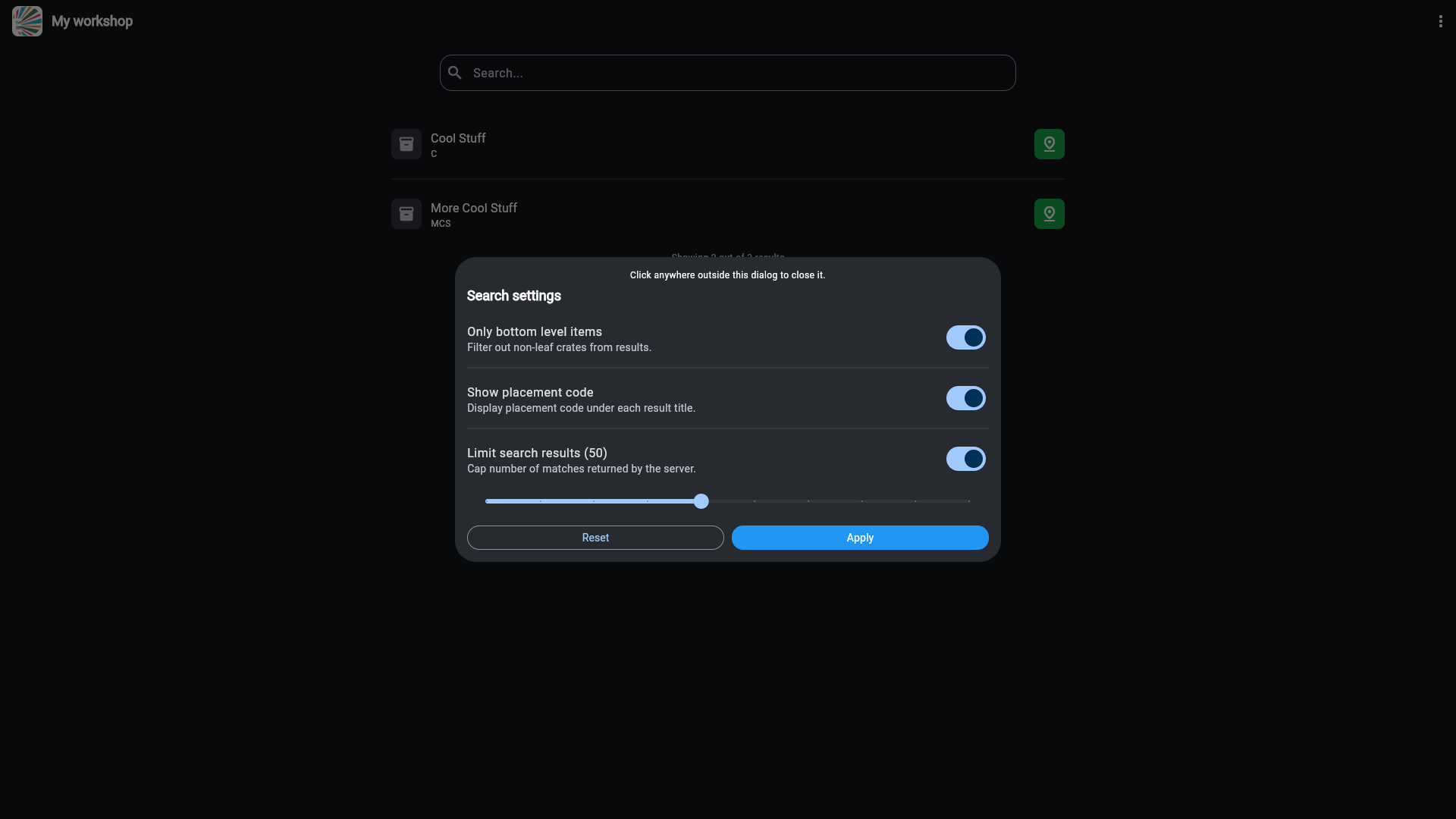
You can adjust the following options:
"Only bottom level items" (Default: On)
When enabled, the search results will only show leaf crates (crates that do not contain any other crates). Disable this if you want to search for higher-level containers like rooms or cabinets.
"Show placement code" (Default: On)
When enabled, each result displays its placement code beneath the name. This helps you quickly gauge where an item is located without having to click "Locate".
"Limit search results" (Default: 50)
Controls the maximum number of results displayed. If you have a large inventory and are searching with a broad term, you might want to disable this limit to see all matches.